Posted by ComputerExpert
on
Tuesday, December 8, 2009
, under
LINUX,
os
|

Kubuntu is a free, user-friendly operating system based on the K Desktop Environment and on the award winning Ubuntu operating system. With a biannual release cycle and at least 18 months of free security updates for each release, it is the secure, stable computing environment you've been waiting for.
The Strength of KDE
Dozens of user applications covering all your needs from web browsing to media playing, all wrapped in a first-class award-winning desktop environment.
Free for all
The whole Kubuntu distribution is composed of free software that offers you complete control over your system. And if you need a 100% reliable platform, you can count on our professional support.
Read about our support providers.
Package. Managed.
Standing on the shoulders of a free software giant - Debian, we provide more installable packages than any of the operating systems in the past. All reachable within a few clicks and heavily tested.
Learn about package management in Kubuntu.
Developer-Friendly
In the Ubuntu project, we care about our advanced developer-hopeful users. You can easily turn your machine into a test server, install many high-quality IDEs and discuss the lastest software trends with our large and friendly community.

OR u can request free cd at your doorstep here


Posted by ComputerExpert
on
Sunday, November 15, 2009
, under
LINUX,
LOOK,
OS
|
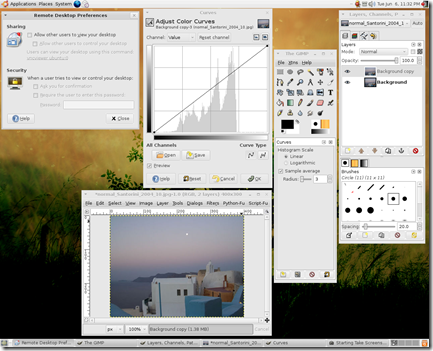
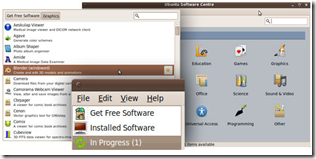
Ubuntu is an operating system built by a worldwide team of expert developers. It contains all the applications you need: a web browser, office suite, media apps, instant messaging and much more.
Ubuntu is an open-source alternative to Windows and Office.

| General keyboard shortcutsCtrl + A = Select all
Ctrl + C = Copy the highlighted content to clipboard
Ctrl + V = Paste the clipboard content
Ctrl + N = New (Create a new document, not in terminal)
Ctrl + O = Open a document
Ctrl + S = Save the current document
Ctrl + P = Print the current document
Ctrl + W = Close the close document
Ctrl + Q = Quit the current applicationKeyboard shortcuts for GNOME desktopCtrl + Alt + F1 = Switch to the first virtual terminal
Ctrl + Alt + F2(F3)(F4)(F5)(F6) = Select the different virtual terminals
Ctrl + Alt + F7 = Restore back to the current terminal session with X
Ctrl + Alt + Backspace = Restart GNOME
Alt + Tab = Switch between open programs
Ctrl + Alt + L = Lock the screen.
Alt + F1 = opens the Applications menu
Alt + F2 = opens the Run Application dialog box.
Alt + F3 = opens the Deskbar Applet
Alt + F4 = closes the current window.
Alt + F5 = unmaximizes the current window
Alt + F7 = move the current window
Alt + F8 = resizes the current window.
Alt + F9 = minimizes the current window.
Alt + F10 = maximizes the current window
Alt + Space = opens the window menu.
Ctrl + Alt + + = Switch to next X resolution
Ctrl + Alt + - = Switch to previous X resolution
Ctrl + Alt + Left/Right = move to the next/previous workspaceKeyboard shortcuts for TerminalCtrl + A = Move cursor to beginning of line
Ctrl + E = Move cursor to end of line
Ctrl + C = kills the current process.
Ctrl + Z = sends the current process to the background.
Ctrl + D = logs you out.
Ctrl + R = finds the last command matching the entered letters.
Enter a letter, followed by Tab + Tab = lists the available commands beginning with those letters.
Ctrl + U = deletes the current line.
Ctrl + K = deletes the command from the cursor right.
Ctrl + W = deletes the word before the cursor.
Ctrl + L = clears the terminal output
Shift + Ctrl + C = copy the highlighted command to the clipboard.
Shift + Ctrl + V (or Shift + Insert) = pastes the contents of the clipboard.
Alt + F = moves forward one word.
Alt + B = moves backward one word
Arrow Up/Down = browse command history
Shift + PageUp / PageDown = Scroll terminal outputKeyboard shortcuts for CompizAlt + Tab = switch between open windows
Win + Tab = switch between open windows with Shift Switcher or Ring Switcher effect
Win + E = Expo, show all workspace
Ctrl + Alt + Down = Film Effect
Ctrl + Alt + Left mouse button = Rotate Desktop Cube
Alt + Shift + Up = Scale Windows
Ctrl + Alt + D = Show Desktop
Win + Left mouse button = take screenshot on selected area
Win + Mousewheel = Zoom In/Out
Alt + Mousewheel = Transparent Window
Alt + F8 = Resize Window
Alt + F7 = Move Window
Win + P = Add Helper
F9 = show widget layer
Shift + F9 = show water effects
Win + Shift + Left mouse button = Fire Effects
Win + Shift + C = Clear Fire Effects
Win + Left mouse button = Annotate: Draw
Win + 1 = Start annotation
Win + 3 = End annotation
Win + S = selects windows for grouping
Win + T = Group Windows together
Win + U = Ungroup Windows
Win + Left/Right = Flip WindowsKeyboard shortcut for NautilusShift + Ctrl + N = Create New Folder
Ctrl + T = Delete selected file(s) to trash
Alt + ENTER = Show File/Folder Properties
Ctrl + 1 = Toggle View As Icons
Ctrl + 2 = Toggle View As List
Shift + Right = Open Directory (Only in List View)
Shift + Left = Close Directory (Only in List View)
Ctrl + S = Select Pattern
F2 = Rename File
Ctrl + A = Select all files and folders
Ctrl + W = Close Window
Ctrl + Shift + W = Close All Nautilus Windows
Ctrl + R = Reload Nautilus Window
Alt + Up = Open parent directory
Alt + Left = Back
Alt + Right = Forward
Alt + Home = go to Home folder
Ctrl + L = go to location bar
F9 = Show sidepane
Ctrl + H = Show Hidden Files
Ctrl + + = Zoom In
Ctrl + - = Zoom Out |


